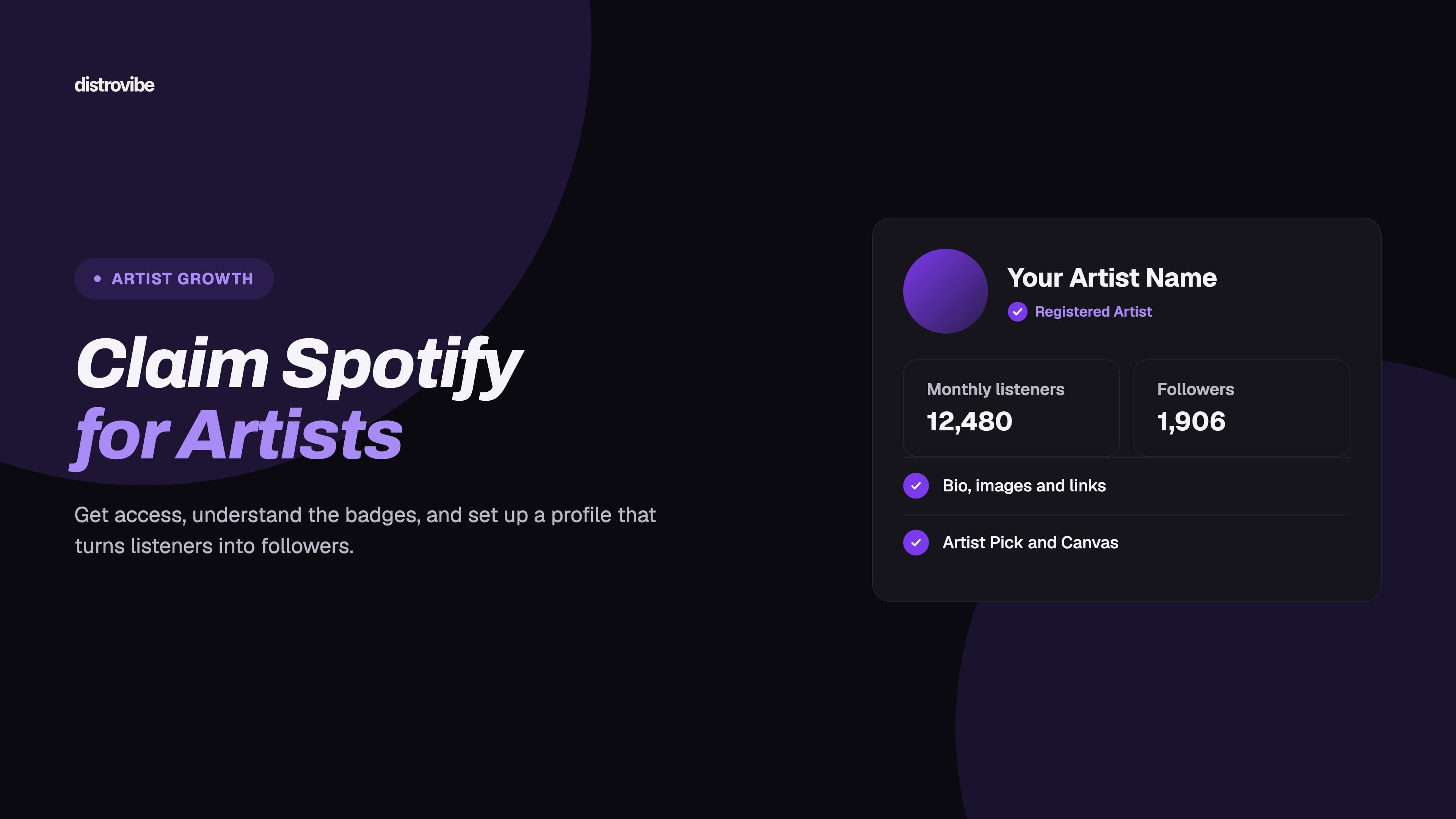
To claim Spotify for Artists, you first need at least one release live on Spotify, or delivered and scheduled. Spotify creates your artist profile from your distributor's delivery, not from a sign-up form. Then go to artists.spotify.com, choose to request access to an artist profile, find your profile, and verify it. If your distributor is a Spotify preferred provider, access is instant. If not, Spotify checks the website or social links you submit, which usually takes a few days.
Spotify also changed what "verified" means in 2026, which confuses a lot of artists. This guide covers access, the two badges, profile setup, wrong-profile fixes and team access. Every Spotify-specific claim was checked against Spotify's help centre in October 2026.
Key takeaways
Spotify artist profiles are created from a distributor's delivery, so an artist needs a release live or scheduled on Spotify before claiming Spotify for Artists.
Spotify grants instant access through preferred distributors; other requests are reviewed one by one and can take a few days.
Since January 28, 2026, Spotify's blue checkmark means "Registered Artist", a claimed and actively managed profile.
As of October 2026, the green "Verified by Spotify" badge looks for 10K monthly active listeners over three months and 1K followers.
Step zero: your music has to be on Spotify first
You can't create a Spotify artist profile directly. Profiles are generated when a distributor or label delivers a release under an artist name. Until that happens, there is nothing to claim.
So the real first step is distribution. Choose a distributor, upload your audio and artwork, enter your artist name exactly as you want it to appear, and set a release date. If this is your first release, our walkthrough on how to upload music to Spotify for your first release covers the delivery side step by step.
Two things matter at this stage more than people expect:
Your artist name has to be consistent. If you deliver as "J. Rivera" on one release and "J Rivera" on the next, you can end up with two profiles. Spelling, capitalisation and punctuation should match every time. Treat the artist name field as permanent.
New artist or existing profile? If you've released before, give your distributor your existing Spotify artist link or URI, so the new release attaches to the right profile. If you share a name with another artist, say clearly that you are a new artist. Otherwise your music can land on their profile.
If you still need a distributor, DistroVibe's plans deliver to Spotify and 450+ other platforms from $1.99/month with unlimited releases.
Can you claim your Spotify artist profile before release?
Yes. This matters because you need Spotify for Artists access to pitch an unreleased song to Spotify's editors. That pitch has to happen before release day.
Spotify's Getting access to Spotify for Artists article explains the pre-release route. Ask your label or distributor for your artist link or URI. It looks like open.spotify.com/artist/... or spotify:artist:.... Then contact Spotify support with that link and the UPC or EAN of your upcoming release. Your distributor can usually share it once Spotify has processed the delivery.
This is why it pays to deliver early. A release scheduled three to four weeks out leaves time for processing, claiming your profile and pitching. If you plan to pitch, read our guide on how to pitch your song to Spotify editorial playlists before you pick a release date.
How to claim Spotify for Artists: the two routes
According to Spotify's help centre, artists and managers have two ways in. Both start in the same place.
Route 1: instant access through a preferred distributor
Spotify works with a list of "preferred" providers. If your music comes from one of them, you submit the normal access request and Spotify grants access automatically, with no manual review. Spotify's help pages name CD Baby, DistroKid, EmuBands, iGroove, Record Union and Vydia, among others, as preferred or recommended providers. These integrations are genuinely convenient.
Route 2: Spotify's own request flow
If your distributor isn't on that list, you can still claim your profile. You'll just wait a little longer. The steps:
Go to artists.spotify.com and log in with a Spotify account. Use an account you will keep long term, ideally one tied to an email you control, not a former manager's.
Choose the option to get access to an artist profile.
Search for your artist name, or paste your Spotify artist link. Check the profile picture and releases to make sure you've picked your profile and not a namesake's.
Add your website or social media links. Spotify uses them to confirm you are the artist or their representative. Accounts that clearly match the artist name make review easier.
Submit the request.
Spotify says it reviews these requests one by one, so approval can take a few days. Only one request can be pending per profile at a time. If it's rejected, Spotify emails you with next steps.
One important rule: you cannot request access to a profile that already has a team. If a manager, label or old bandmate claimed it before you, the team's admin has to invite you. If you can't reach that person, contact Spotify for Artists support.
What "verified" means on Spotify in 2026
"How do I get verified on Spotify?" used to have a simple answer: claim your profile and you get a blue checkmark. In 2026 that split into two signals.
The blue check now means "Registered Artist"
Starting January 28, 2026, Spotify began relabelling the blue checkmark. In its article Updates to the verification checkmark, Spotify explains that the old "Verified Artist" label implied more than the badge was built to show. The check is now called Registered Artist, shown in the About section of profiles. It means the profile is claimed and actively managed in Spotify for Artists. Spotify says the change doesn't affect visibility, discovery, royalties or access to tools.
The "Verified by Spotify" badge
On April 30, 2026, Spotify introduced a separate badge: Verified by Spotify, shown as a light green checkmark on profiles and in search. We covered the launch in Spotify launches a verified badge for human artists. The badge signals that a real, identifiable artist stands behind a profile, at a time when AI-generated uploads are flooding streaming services.
According to Spotify's Verified by Spotify help article, as of October 2026 the criteria include:
Sustained listener activity: at least 10K monthly active listeners over a consecutive three-month period, plus at least 1K followers. Spotify may also consider artists with important cultural contributions or growing cultural momentum who don't meet those numbers.
Platform compliance: no repeated spam, impersonation or policy violations.
Profile authenticity: no deceptive bio content, a catalog that is mostly music, and public signs of a real artist, such as linked social accounts, concert dates or merch.
Profiles that primarily represent AI-generated or AI-persona artists aren't eligible. Spotify does say artists who use AI tools responsibly in their creative process can still be verified, as long as they present themselves authentically. You can't pay for the badge or, according to the help article, apply for it. Spotify reviews profiles on a rolling basis and notifies verified artists inside Spotify for Artists. Meeting the thresholds doesn't guarantee immediate approval.
What this means in practice: if you're early in your career, claim your profile now and get "Registered Artist". The green badge comes later, as your audience and off-Spotify presence grow.
Spotify artist profile setup checklist
Once you have access, spend an hour on your profile before you start promoting. Here's what to set up, based on Spotify's current help docs. Only team members with Admin or Editor access can edit these.
1. Profile picture and header image
Spotify's artist image guidelines accept JPEG, PNG or GIF, up to 20MB. Minimum sizes:
Image | Minimum size | Notes |
|---|---|---|
Profile picture (avatar) | 750 × 750 px | Shown as a circle, so keep your face centred |
Header image | 2660 × 1140 px | Cropped differently on mobile and desktop |
Gallery images | 690 × 500 px | Add several for variety |
Artist Pick image | 690 × 500 px | Optional, sits behind your Pick |
Spotify doesn't allow text, advertising, busy backgrounds or promotion of upcoming tours or releases inside profile images. It removes images that break these rules. Use clean photos, not flyers.
2. Bio and social links
Write a short bio in the third person: who you are, where you're from, what you sound like, and one or two real milestones. Add your Instagram, TikTok, YouTube, website and other links in the profile settings. These are also real-presence signals Spotify uses for verification, and deceptive bio content counts against you.
3. Artist Pick
Artist Pick is the featured slot at the top of your profile. You can pin a song, album, music video, playlist, concert, merch item or podcast episode, with an optional image and short message. A Pick stays live for 180 days unless you replace it. Concerts drop off after the show, and merch drops off when it sells out. Update it with every release so the first thing a visitor sees is your newest music.
4. Canvas
Canvas is the short looping visual that plays behind a track in the Spotify app. Spotify's specs: 3 to 8 seconds, vertical 9:16, MP4 or JPG, between 720 and 1080 px in height. Add one to every single.
5. Countdown Pages
Countdown Pages let fans pre-save an upcoming album or EP and watch countdown videos before release. As of October 2026, Spotify's help article says you need at least 3,000 monthly active listeners. That's active listeners, found under Audience, then Segments. Only new, original albums and EPs qualify. Singles and reissues don't. The release must be delivered via DDEX, and if there are several main artists, only the first-listed one can create the page. Some regional help pages still show 5,000, so check your own dashboard.
If you don't qualify yet, a pre-release smart link page does a similar job across every store, not just Spotify.
6. Clips are gone, and videos are coming
Older guides still tell you to upload Clips. According to Spotify's Clips help article, new Clips uploads stopped on June 17, 2026. Existing Clips stay live and move into a Video tab on artist profiles. Instead, Spotify is gradually rolling out full-length video uploads in Spotify for Artists for eligible artists: music videos, live sessions, covers and so on. If you don't see video uploads yet, access simply hasn't reached you.
Fixing a wrong, duplicate or mixed-up profile
Profile mix-ups are common, especially for artists with common names. Here's what Spotify's Music mixed up with another artist article recommends.
Your music is on someone else's profile, or theirs is on yours
If you have Spotify for Artists access, report it through the content mismatch form in Spotify for Artists. Spotify emails you once it's fixed, usually within a few days. You can also report upcoming releases before they go live. If your music is on the wrong profile and you don't have access yet, contact Spotify for Artists support first. They can move the music and then help you claim the correct profile.
Your distributor can help as well. Ask them to correct the artist mapping and to deliver future releases with your specific Spotify artist ID. Don't delete the release and upload it again as a first fix. That can create duplicate releases and new links, and you lose the stream history tied to the original.
Your catalog is split across two of your own profiles
This usually happens after a name-spelling mismatch or a release delivered as "new artist" by mistake. Report it through the same content mismatch form or Spotify support, and give the links to both profiles. Then make sure every future release is delivered against one artist ID, so the split doesn't happen again.
Stop it happening: Artist Profile Protection
In March 2026 Spotify announced Artist Profile Protection, an opt-in setting in Spotify for Artists. When it's on, you get an email whenever music is delivered with your name attached, and you can remove yourself from releases that aren't yours. As of September 2026 it's still a limited beta, so only artists in the beta see it. If it shows up in your settings, it's worth turning on, especially if you share a name with another act.
Team access: managers, labels and band members
Your Spotify for Artists access belongs to a team, and each person on it has an access level. According to Spotify's Access levels in Spotify for Artists article:
Access level | What they can do | Good for |
|---|---|---|
Reader | View music and audience stats, roster and profile; can't edit | Bandmates, PR people, booking agents |
Editor | Everything Reader can, plus edit the profile, add Canvas, pitch releases, run campaigns, manage Shopify merch | Managers, social media help |
Admin | Everything Editor can, plus add and edit payment methods | The artist, a trusted manager |
On top of these levels sits the optional Team Admin role. Team Admins can invite and remove members, change their access levels and see team activity. Access levels are changed at manage.spotify.com/teams.
Practical rules:
The artist should always be a Team Admin. Managers and labels come and go. If you aren't an admin of your own team, getting control back means contacting Spotify support.
Give people the lowest level they need. A booking agent rarely needs Editor.
Review your team after any change. Ending a management deal or leaving a label is a good time to remove old access.
Labels get a separate label team. Labels can request a label team in Spotify for Artists to see their whole roster in one place, matched to the label name in your release metadata. A label request also takes a few days to review.
How to get started on DistroVibe
Getting a release onto Spotify with DistroVibe, ready to claim, takes six steps.
Create your account on the DistroVibe sign-up page, then enter the six-digit code DistroVibe emails you.
Pick a plan, billed monthly or yearly.
Upload your audio and artwork and enter your artist name exactly as it should appear.
Choose your stores, including Spotify.
Set your release date three to four weeks out and submit for review.
Share a SmartLink and claim your Spotify for Artists profile.
FAQ
Effectively, yes. Spotify artist profiles only exist once music is delivered to Spotify, and independent artists deliver through a distributor. Once your music is live or scheduled, you can claim the profile through Spotify's own request flow, whichever distributor you use. Preferred distributors simply make access instant.
Through a preferred distributor, access is granted automatically. Through Spotify's standard request flow, Spotify reviews each request individually, which can take a few days. Pre-release access through Spotify support can take longer, so leave a buffer before your release date.
Claiming your profile gives you the blue "Registered Artist" check. The green "Verified by Spotify" badge is awarded separately. Spotify reviews profiles on a rolling basis, looking at sustained listeners (10K monthly active over three months and 1K followers, as of October 2026), policy compliance and real-world presence. There's no application or fee.
Yes. Once your distributor has delivered the release, ask them for your Spotify artist link or URI. Then contact Spotify support with that link and the release's UPC or EAN. This lets you pitch the song to editors before release.
You can't submit a new access request for a profile that already has a team. Ask the current Team Admin to invite you. If you can't reach them, or don't recognise them, contact Spotify for Artists support with proof that you are the artist.
Get your first release live, then claim it
Claiming your profile is quick once the groundwork is right: consistent artist names, early delivery and the correct artist ID. DistroVibe delivers to Spotify and 450+ other platforms, from $1.99 a month on the Artist plan. You keep 100% of your streaming royalties and can release as much as you like. If you're planning a first or next release, compare the plans and create your DistroVibe account.